Formations in Well Log Plots
A well log track can show formations as annotated depth regions. The formations can come from three sources:
- Case – formations defined for ranges of grid k-layers, mapped onto the well path or simulation well.
- Well Picks for Well Path – formation tops and bases in measured depth, attached to a well path.
- Well Picks (no trajectory) – formation tops and bases from an FMU well formations file (
formations.csv), looked up by well name. No well path is required.
See Formations and Well Picks for how to import formation and well pick files.
Show Formations in a Track
Select a Track in the Plot Project Tree. Formation settings are found in the Regions/Annotations group of the Property Editor.
- Region Annotations – select Formations.
- Region Display – how the regions are drawn: Dark Lines, Light Lines, Colored Lines, Color Shading or Color Shading and Lines.
- Show Labels – show the formation name in each region.
- Colors – the color legend used for colored lines and shading.
- Color Transparency – transparency of the color shading.
- Source – where the formations are read from. The remaining options depend on the source.
Formations for K-layers
Set Source to Case to show the formations assigned to a grid case. The formations are mapped from grid k-layers onto the well trajectory, so the result depends on the grid geometry along the well.
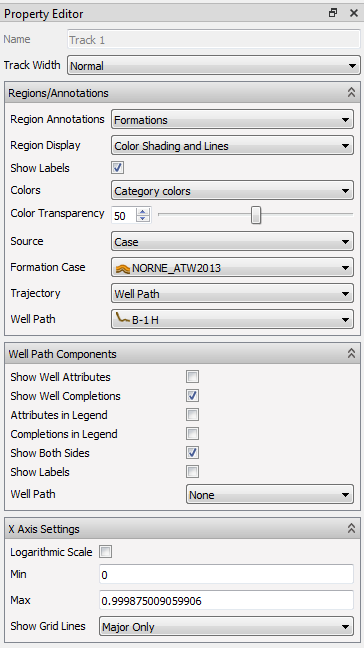
- Formation Case – the case that has the formations. See Select the Formation File in a Case.
- Trajectory – Well Path or Simulation Well.
- Well Path or Simulation Well – the well to extract formations along. For simulation wells with several branches, a branch can be selected.
The track’s formations can come from a different well than the curves in the same track.
For geomechanical models, the formations also indicate the sea level.
Well Picks
Well picks give formation tops and bases directly in measured depth, independent of the grid.
Well Picks for a Well Path
Set Source to Well Picks for Well Path to show well picks imported with File->Import->Well Data->Import Well Picks.
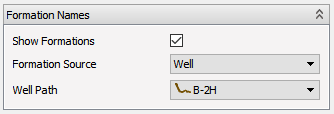
- Well Path – the well path to show well picks for. Only well paths with well picks are listed.
- Well Pick Filter – the deepest formation level to show, for example Formation Group, Formation or Formation 1. All shows every level. Use the filter to reduce the number of annotations.
- Show Fluids – also show well picks interpreted as fluids (OIL, GAS and WATER).
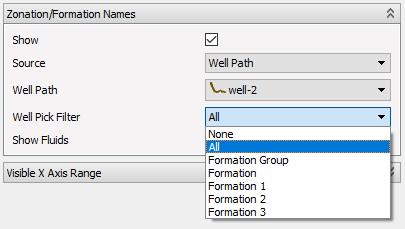
If more than one formation starts within 0.1 m of the same measured depth, only the lowermost formation is shown. See Well Pick Files for Well Paths for how unit names are interpreted as groups, formation levels and fluids.
Well Picks Without a Trajectory
Set Source to Well Picks (no trajectory) to show zones from an FMU formations.csv file. This source does not need a well path, and is useful for wells that only have RFT data.

- Formations File – an imported well formations file. Files are listed under Data Sources->Well Picks (Formations) in the Plot Project Tree.
- Add Well Picks – import a well formations file and select it.
- Well – the well name in the file to show zones for.
- Well Pick Filter and Show Fluids – as for well picks for a well path.
RFT plots select this source automatically when the well has no well path and a matching well formations file is found. See RFT Correlation Plot.