RFT Correlation Plot
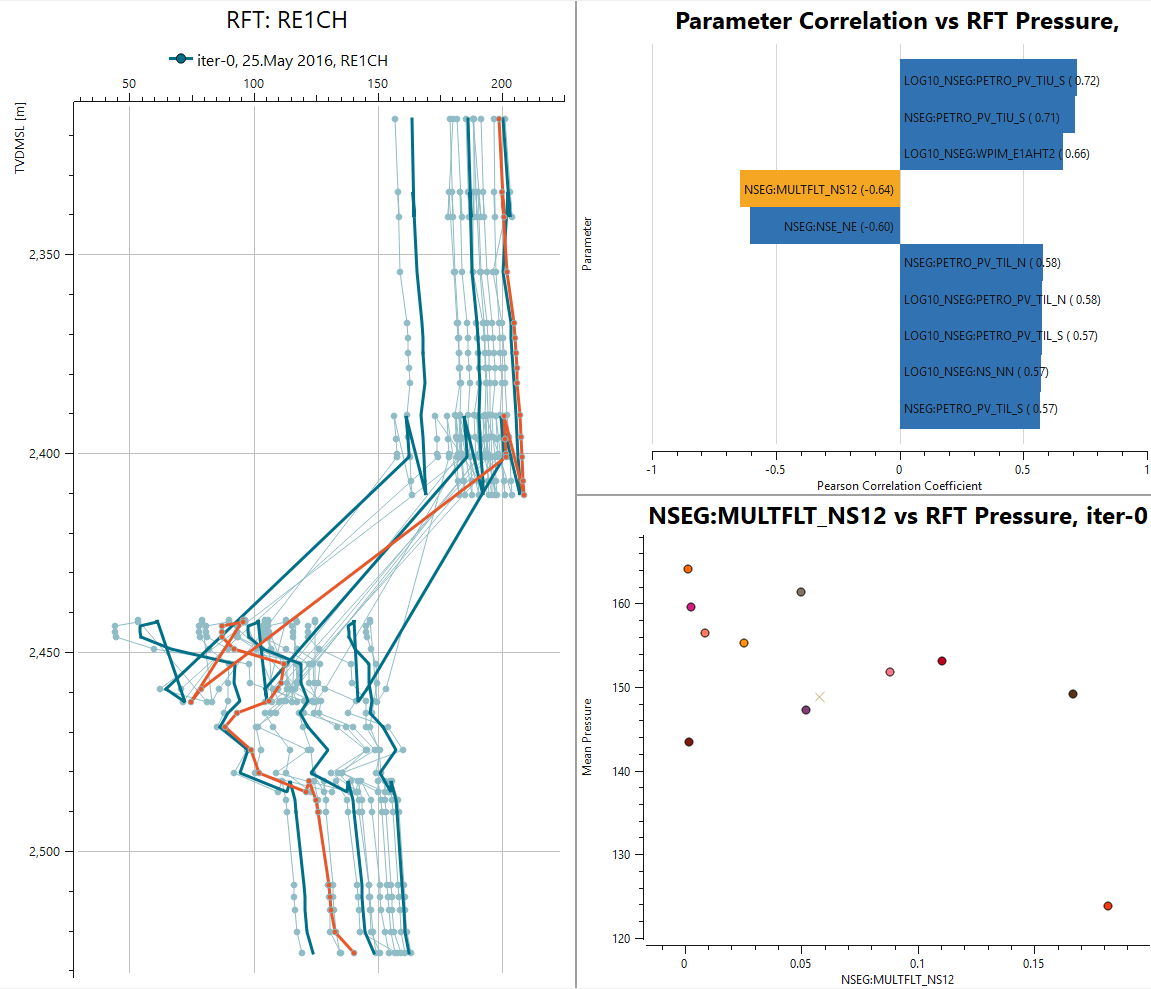
The RFT Correlation Plot combines an ensemble RFT plot with correlation analysis, making it possible to investigate how ensemble parameters relate to the RFT pressure response. The plot links three coordinated views in a single layout:
- RFT Plot – pressure versus depth for the realizations of an ensemble, as in a standard Ensemble RFT Plot. The RFT curves are colored by the selected ensemble parameter.
- Tornado Plot – the ensemble parameters ranked by their correlation with the RFT pressure, shown as a tornado plot of the Pearson correlation coefficient. Positive correlations extend to the right, negative correlations to the left.
- Cross Plot – the selected ensemble parameter plotted against the RFT pressure, with one point per realization, together with the observed pressure.
The three views are connected: selecting a bar in the Tornado Plot updates the Cross Plot and the RFT curve coloring to use that parameter, and clicking a formation in the RFT Plot restricts the correlation to that formation.
Create New RFT Correlation Plot
An RFT Correlation Plot is created from an existing Ensemble RFT Plot. Right-click the RFT plot in the Plot Project Tree and select Create RFT Correlation Report.
The new plot inherits the well, ensemble, and time step from the source RFT plot. It is created under Ensemble Correlation Plots in the Plot Project Tree, with the three views listed as sub-items: RFT, RFT Tornado Plot, and Parameter RFT Cross Plot. The plot opens in the Plot Main Window.
The first numeric ensemble parameter is selected by default, and the RFT curves are colored by it. If an imported well formations file contains picks for the well, the new plot is set up to filter by formation.
Well Formations
Formation filtering uses depth-based well picks in the FMU formations.csv format. Each row defines the top and base of a zone in a well:
To import a file, right-click Well Picks (Formations) under Data Sources in the Plot Project Tree and select Import Well Formations…. Selecting an imported file shows its content as a table in the Property Editor.
Well picks are independent of K-layer based formation names (.lyr files) and do not require a well path trajectory. The RFT track in the correlation plot uses the Well Picks (no trajectory) formation source, which looks up the zones in the file by well name and shows them as colored formation shading. The Add Well Picks button in the track’s formation settings imports a file and selects it in one step.
Property Editor
All data source and filter settings are controlled from the property editor of the RFT Correlation Plot itself. The property editor of the Parameter RFT Cross Plot sub-item only contains plot appearance settings.
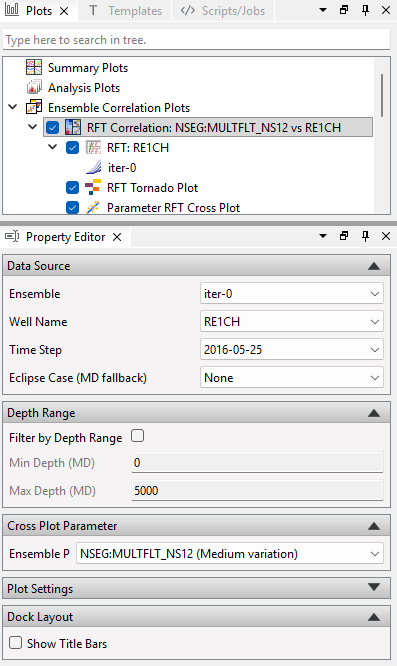
- Depth Unit – measured depth (MD) or true vertical depth (TVD), used for the depth axis and the depth filter in all three views.
Data Source
- Ensemble – the ensemble to analyse.
- Well Name – the well whose RFT pressure is correlated against the ensemble parameters.
- Time Step – the single time step the correlation report is computed for.
- Eclipse Case (MD fallback) – a reservoir simulation case used to resolve measured depth (MD) when it cannot be derived otherwise. (Eclipse here refers to the Eclipse® reservoir simulator; Eclipse is a registered trademark of Schlumberger.)
- Ensemble Parameter – the parameter shown in the Cross Plot and used to color the RFT curves. Selecting a bar in the Tornado Plot updates this field.
Depth Range
The group title shows the active depth unit, for example Depth Range (MD).
- Depth Filter – restricts the RFT samples used by the Tornado Plot and the Cross Plot:
- None – all RFT samples for the well are used.
- Depth Range – only samples between Min Depth and Max Depth are used.
- Formation – only samples within the selected formations are used. Select a Well Formations File, then one or more Zones.
The active filter is marked in the RFT Plot by a bar along the depth axis, and is included in the plot titles.
Cross Plot Parameter
- Sampling – how RFT samples are represented in the Cross Plot:
- Mean per Realization – one point per realization, using the mean pressure of the filtered samples.
- All Samples – one point per filtered RFT sample.
Dock Layout
- Show Title Bars – shows the dock title bars so the panels can be rearranged. See Modifying the Layout.
Select Formations in the RFT Plot
When well formations are available for the well, the formation zones are shaded in the RFT Plot. Click a zone to add it to the formation filter, and click it again to remove it. Several zones can be selected at once. Clicking a zone switches Depth Filter to Formation if another filter was active.
Selected zones are marked by a bar along the depth axis, and the Tornado Plot and Cross Plot are updated to use only the RFT samples within those zones.
Parameter Correlation
The tornado view ranks each ensemble parameter by how strongly it correlates with the RFT pressure within the active depth filter. The bar of the selected Ensemble Parameter is highlighted. In the example above, filtered to the zones UpperReek and LowerReek, RI:REALIZATION_NUM has the strongest positive correlation (0.62), while the selected parameter LOG10_MULTFLT:MULTFLT_F3 has the strongest negative correlation (-0.35). The correlation factor is computed in the same manner as for Correlation Plots.
Parameter Cross Plot
The cross plot shows the RFT pressure of each realization against the value of the selected ensemble parameter. This reveals the shape of the relationship behind the correlation coefficient – for example whether the trend is linear or driven by a few outlying realizations.
The observed RFT pressure within the active depth filter is drawn as a horizontal line, showing which parameter values give simulated pressures that match the observations:
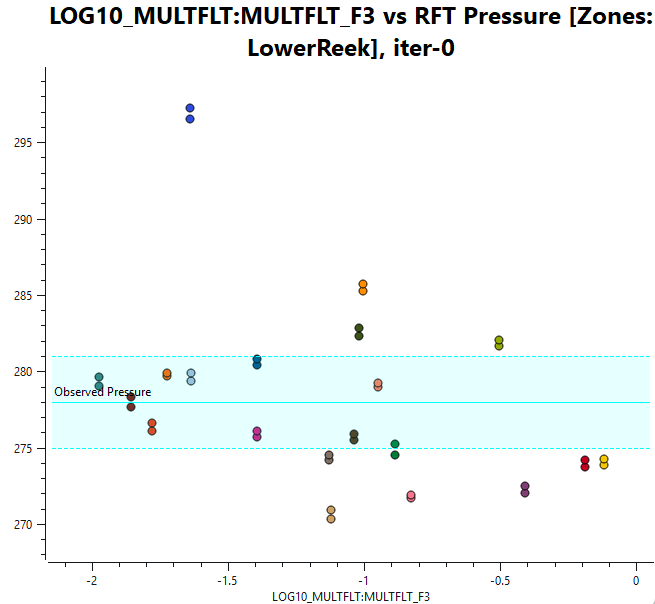
- A single observation is drawn as a solid line, with dashed lines and a shaded band at plus and minus the observation error.
- Several observations within the same formation are combined into one line at their mean pressure, labelled Observed Pressure (average of N observations). The dashed lines and band span the full range of these observations, including their errors.
- When formation shading is available, each observed pressure is drawn in the color of its formation.
Show Plot Data
The numerical data behind the plot is available by right-clicking the plot in the Plot Project Tree and selecting Show Plot Data. This opens a text view with the underlying data for the Tornado Plot and the Cross Plot, which can be copied for use in other applications.
Modifying the Layout
The three views are arranged as dock widgets within the plot window. The default layout places the RFT Plot on the left, the Tornado Plot in the top right, and the Cross Plot in the bottom right.
By default the dock title bars are hidden, so the panels appear as a fixed layout. To rearrange them, enable Show Title Bars in the Dock Layout group of the Property Editor.
With the title bars visible, each panel can be modified using its title bar:
- Drag a panel by its title bar to redock it on another edge, or drop it onto another panel to stack the two as tabs.
- Drag a panel outside the window to leave it floating.
- Close a panel to hide that view. A hidden view can be shown again by enabling its corresponding sub-item (RFT, RFT Tornado Plot, or Parameter RFT Cross Plot) in the Plot Project Tree.
The current layout is stored with the project, so it is restored the next time the project is opened.