Running an OPM Flow Job
Start the job
Once a job has been properly configured, you can start the job in two ways:
- Right click the job in the Scripts/Jobs tree and choose “Run…”
- Click the “Run”-button in the OPM Flow group in the job properties
ResInsight will now write the necessary input data for OPM Flow to the selected working directory. The user interface will be blocked while this is done.
Once the input data has been written, ResInsight will launch OPM Flow as specified in the OPM Flow preferences.
- WSL will be used on Windows if selected
- MPI will be used if selected
- The selected command line parameters from the job properties will be added
The resulting command line used to launch OPM Flow will be shown in the ResInsight Messages window.
Monitor the job progress
Once the OPM Flow process has been started, the ResInsight user interface will unblock, and you can use it as normal. The job properties of the started job will change into a running state, with two items available:
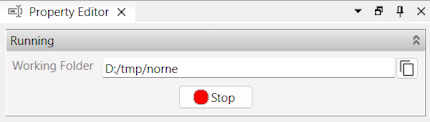
Working folder: Shows where the OPM Flow job input and output data files can be found
Stop: Allows you to stop the job. You will be asked for confirmation.
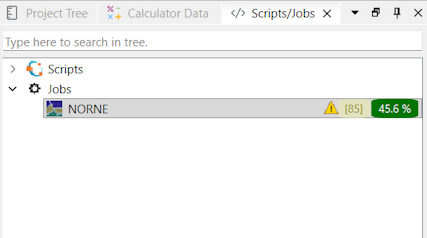
The Scripts/Jobs tree will show the job progress and the warning count found in the OPM Flow log output. Any line starting with either Warning or Problem is counted as a warning.
When the job has completed, Done will be shown in the progress field. If the job failed for some reason, the progress field will turn red, and if there are any log lines starting with Error, the error count will be shown. There could also be error messages shown in the ResInsight messages window.
Inspect the OPM Flow log
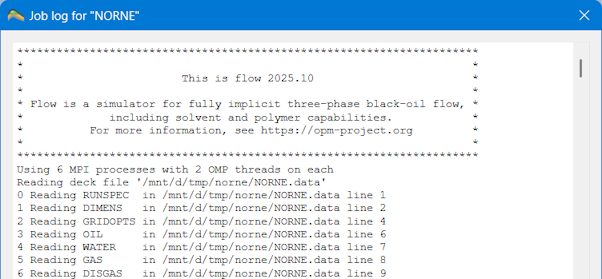
The log output from an OPM Flow job could be inspected by right clicking the job and selecting View Log…. This can be done while the job is running or after it has failed or completed.
Right clicking in the log window gives you the option to select all the text and copy it to the clipboard, so that you could copy it to a text editor for closer inspection.
On successful runs
If a job has completed successfully, ResInsight will automatically load and display the output from the job.
If Add to Ensemble was checked:
- The summary results from the job will be added to a summary ensemble, and if any existing plots were showing data from the ensemble, the plots will be updated with the new realization added.
- The grid results from the job will be added to a grid ensemble, and if this is the first time you run the job, a 3D view showing the grid will be added.
If Add to Ensemble was not checked:
- A summary plot will be added for the summary data if this was the first run.
- If a plot already was showing data from this job, the data will be reloaded and updated.
- A 3D grid view will be added for the grid data if none existed.
- If a view already was showing the data, the data in the view will be reloaded and updated.
Running multiple jobs
ResInsight allows you to run as many jobs as you want at the same time, only limited by the available computing resources.