Using a batch scheduler
Setting up
ResInsight can launch OPM Flow simulation jobs using three different options:
- Run the simulation jobs on the local computer
- Submit the simulation jobs to a HPC cluster using IBM Spectrum LSF
- Submit the simulation jobs to a HPC cluster using Slurm workload manager
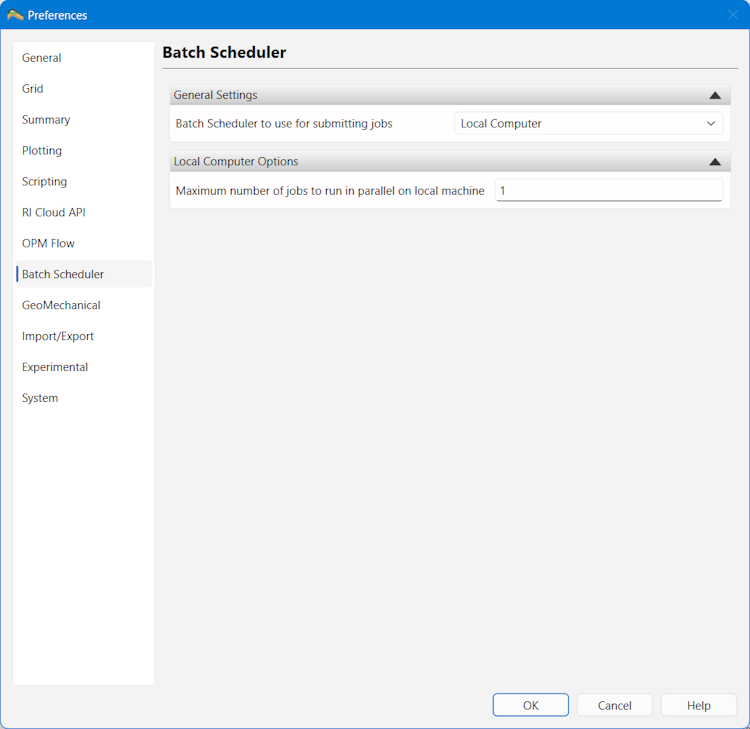
To choose which method ResInsight should use, go to the ResInsight preferences and select the Batch Scheduler page:
Local computer
When Local computer is selected, ResInsight will launch the OPM Flow executable on the same computer as ResInsight is running. You can set the maximum number OPM Flow simulation jobs to run at the same time by adjusting the setting in Local Computer Options. If you start more jobs than the specified limit, the remaining jobs will be queued and started once the number of running jobs falls below the limit.
Slurm
When Slurm is selected, ResInsight will submit the OPM Flow jobs using the sbatch command.
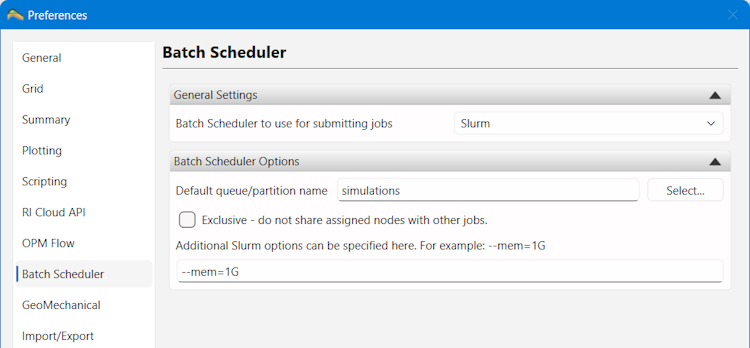
Under Batch Scheduler Options you have the following options for Slurm:
Default queue/partition - choose the partition you want ResInsight to submit the OPM Flow jobs to. You can click the Select… button get a list of the available partitions (read by ResInsight using the sinfo command )
Exclusive - turn this option on to tell Slurm that you want exclusive access to the cluster nodes your jobs are assigned. No other jobs will be allowed to run on the nodes used to run your jobs even if there are available resources. Note that not all cluster configurations allows you to specify this.
Additional Slurm options - here you can specify additional options that are required for your jobs, i.e. accounting information or memory requirements. The text entered here will be written without modification to a single #SBATCH line in the job launch script.
LSF
WHen LSF is selected, ResInsight will submit the OPM Flow jobs using the bsub command.
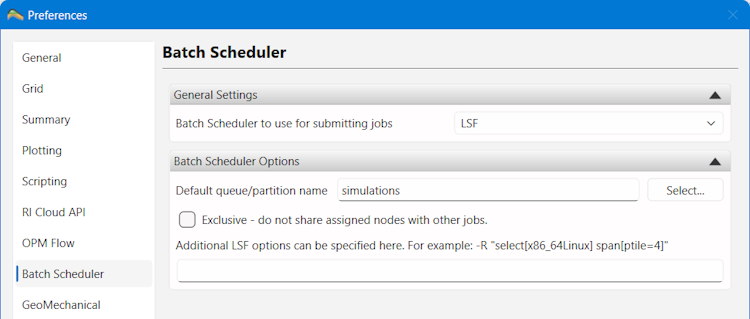
Under Batch Scheduler Options you have the following options for LSF:
Default queue/partition - choose the queue you want ResInsight to submit the OPM Flow jobs to. You can click the Select… button get a list of the available partitions (read by ResInsight using the bqueues command )
Exclusive - turn this option on to tell LSF that you want exclusive access to the cluster nodes your jobs are assigned. No other jobs will be allowed to run on the nodes used to run your jobs even if there are available resources. Note that not all cluster configurations allows you to specify this.
Additional LSF options - here you can specify additional options that are required for your jobs, i.e. accounting information or memory requirements. The text entered here will be written without modification to a single #BSUB line in the job launch script.
Running OPM Flow simulation jobs
When running OPM Flow jobs (described here), the only difference between a local job and a job submitted to a batch scheduler is that you will not get progress updates while the job is running, and that the log output of the job will not show up until after the job has completed (or failed for some reason).
The job name used on the cluster will have a prefix “RI_”, to show that the job was created by ResInsight.
Note: Depending on how the batch scheduler on the cluster has been configured, there might be a delay between the job completing and ResInsight being notified that is has completed.
Stopping jobs
When you stop a job (clicking the Stop button or using the Stop job right-click menu command), jobs running on a cluster will be stopped using either bkill (LSF) or scancel (Slurm).
Note: It might take a few seconds for ResInsight to get notified by the batch scheduler that the job has been stopped.
Monitor jobs running on a cluster
A Batch Queue Monitor window is available in ResInsight. It allows you to monitor the jobs you have waiting and/or running on a cluster.
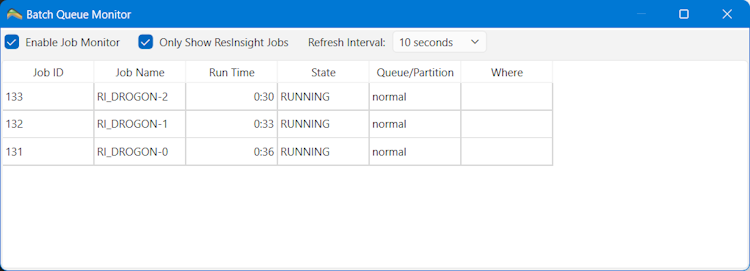
The monitor window is hidden by default, but can be shown by going to the main 3D Window’s Windows menu and choosing Windows -> Batch Queue Monitor. The monitor will show up as a floating window by default, but can be docked at a suitable location in the main 3D Window.
Enable Job Monitor - Enable this to start monitoring. Resinsight will run squeue (Slurm) or bjobs (LSF) at the selected interval to get a list of your jobs from the cluster
Only Show ResInsight Jobs - Enable this to only show jobs that start with the ResInsight prefix “RI_”.
Refresh Interval - Choose how often ResInsight should refresh the job information. You can choose between 5, 10 and 30 seconds. On a busy cluster, it is recommended to not refresh the job information too often.
Note: it is recommended to stop the job monitor when not needed, as it could put some additional, unnecessary load on the cluster system.