Add a New Well
Preparations
ResInsight can be used to create a well path with completions and add a new simulation well based on this to the OPM Flow Job.
To be able to do this you need a grid case loaded that can be used to define the well path as well as read grid results from.
If you start with just a DATA file, you need to first run the OPM Flow Job without adding any wells to create the grid.
Define the new well path
First you need a well path to define the well you want to add to your OPM Flow Job. Create well paths describes how to do this. You can also create multilaterals as described here.
You then need to define completions for you new well path. This is described in detail here. Make sure you check the completion settings for the well path, you might need to modify the default values. I.e. the well name set here will be used as the well name in the OPM Flow simulation.
Add the well to the OPM Flow job
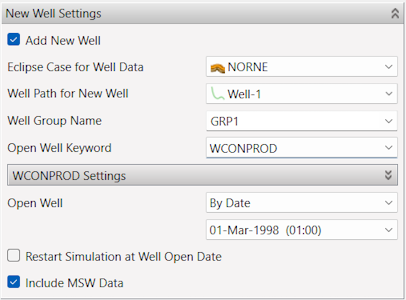
Add New Well Check this option to enable adding a new well to the job.
Eclipse Case for Well Data This is the grid case that will be used to extract well data for the new well.
Well Path for New Well This defines which well path you want to use for the new well. Both the well path and the completion data will be read from the well selected here.
Well Group Name Sets the well group name to be used for the new well. You can enter a new name or use the drop down list to select an already existing group.
Open Well Keyword Choose which keyword to use for controlling the well.
- WCONPROD - for a producer
- WCONINJE - for an injector
Expand the WCONPROD or WCONINJE sub-group to set the parameters you want to use for the keyword selected. Refer to the OPM Flow manual for more details on these settings.
Open Well This setting allows you to choose when you want to open the well using the selected keyword.
- By Date allows you to select an available date from a drop down list.
- By Position enables a button that will open a keyword list. You can there use the Up/Down buttons to select the position of the open keyword.
Restart Simulation at Well Open Date The availability of this options depends on the input file. If the input is not a restart file, you can select to restart the simulation at the same date the well is set to be opened.
Include MSW Data When this option is turned off, only WELSPECS, COMPDAT, COMPLUMP (if set in completion data) and the selected open keyword are inserted into the DATA file. If you turn on this option, additional MSW keywords will be added. (WELSEGS, COMPSEGS, valves, etc.)
NOTE: Some of these options will not be available if your input DATA file does not have DATE keywords (i.e. using TSTEP).