Grid and Summary Ensemble
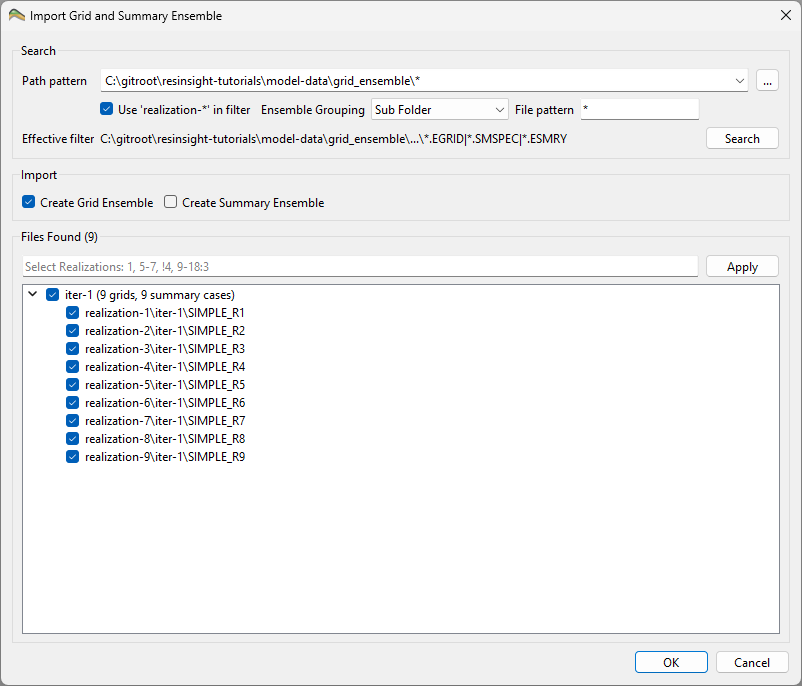
The Import Grid and Summary Ensemble dialog is a simplified ensemble import dialog that imports a grid ensemble and a summary ensemble together in a single step. It searches a directory tree for the matching reservoir simulation files and lets you select which realizations to import.
Search
The Search group defines where and what to search for:
- Path pattern – the root path to search. Use the browse button (…) to select a folder. The pattern uses normal wildcard globbing; a trailing
*searches recursively in all subdirectories from that point. - Use ‘realization-*’ in filter – replaces a concrete realization number in the path (for example
realization-12) withrealization-*, so all realizations are matched. - Ensemble Grouping – how the realizations are grouped into ensembles, either Sub Folder or Main Folder. See Ensemble File Structure for the folder layouts.
- File pattern – the search pattern applied to the file name.
*matches any number of characters. - Effective filter – the resulting full search pattern, updated as the fields are edited. A
...indicates a recursive directory search. The grid (.EGRID), summary specification (.SMSPEC) and summary result (.ESMRY) files are matched.
Press Search to perform the search. The matching realizations are listed under Files Found.
Import
The Import group selects which ensembles to create from the files found:
- Create Grid Ensemble – create a grid ensemble from the matched grid files.
- Create Summary Ensemble – create a summary ensemble from the matched summary files.
Either or both can be selected, so the dialog can import a grid ensemble, a summary ensemble, or both at once.
Files Found
The Files Found group lists the realizations found by the search, grouped by ensemble. The header shows how many grids and summary cases were found (for example iter-1 (9 grids, 9 summary cases)). Each realization has a check box controlling whether it is imported.
To select realizations by number rather than individually, enter a list in the Select Realizations field and press Apply. Ranges are defined with -, multiple entries are separated by ,, exclusions are prefixed with !, and a step can be added with :. For example, 1, 5-7, !4, 9-18:3 selects realization 1, the range 5 to 7 excluding 4, and every third realization from 9 to 18.
Press OK to import the checked realizations into the selected ensembles. The imported Grid Ensemble appears under Grid Models in the Project Tree.