Eclipse Cases
ResInsight supports the following type of reservoir simulation input data:
*.GRIDand*.EGRIDfiles along with their*.INITand restart files*.XNNNand*.UNRST.- Grid and Property data from
*.GRDECLfiles. - ROFF grid models from
*.ROFFand*.ROFFASCfiles.
Simulation Results
ResInsight offers several ways to import reservoir simulation grid files. Use File->Import->Import Grid Models to open the grid model import dialog. Select the appropriate grid model type from the file type list:
- Binary Grid Models (
*.GRID*.EGRID) - Text Grid Models (
*.GRDECL) - Roff Grid Models (
*.ROFF*.ROFFASC)
Select one or more files after choosing the grid model type. The dialog also replaces the separate commands previously used to import binary, text, and ROFF grid models.
Note
Selecting multiple *.GRDECL files imports the grid and its properties in a single operation.
- Import Grid Models Recursively: Brings up the recursive file selection dialog. This dialog is described in detail on the Summary Plots page.
- Import Grid Model (Time Step Filtered): See description
- Create Grid Case Group : Import a set of reservoir simulation files and places the cases in a grid case group See File Selection Dialog for how to import multiple files. All cases must have identical IJK to be part of a grid case group.
- Create Grid Case Ensemble : Import a set of reservoir simulation files and places the cases in a grid case ensemble. The grid models can have varying IJK resolution. If you have identical IJK for all cases, consider uting a Grid Case Group for reduced memory usage and improved performance.
Changing the grid case a view is connected to is described in 3D Views
The Reload Case command can be used to reload a previously imported case, to make sure it is up to date. This is useful if the grid or result files changes while a ResInsight session is active.
Note
You can select several grid files in one go by multiple selection of files (Ctrl + left mouse button, Shift + left mouse button).
Result Index File
If enabled, ResInsight will generate an index file when reading the simulation result files for the first time. This file will significantly reduce the time used to open the case next time. The file is named <casename>.RESINSIGHT_IDX
See Preferences: Behavior When Loading Data
Time Step Filtered Eclipse Result
Some reservoir simulation files have an enormous amount of time steps. If only a selection of the time steps really are needed for the session, the time steps can be filtered before loading. This can possibly speed up the import a great deal. Filtering can be done in the following way.
Select File->Import->More->
 Import Grid Model (Time Step Filtered) and select an
 *.EGRID or *.GRID simulation file for import. A dialog will appear.
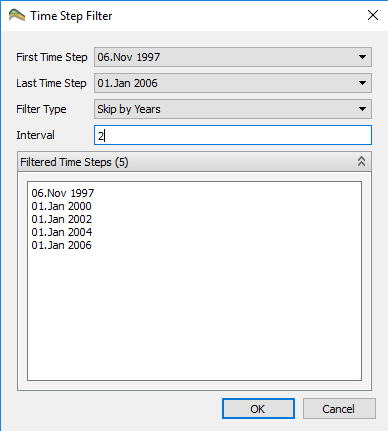
Filtering can be done by adjusting the following parameters:
- First and last time step
- Step filter type and with step interval size
First and last time step to include in the import can be chosen in their respective drop down list. All time steps found in the file are included in both lists.
Filter Type is set to All by default. This means that all time steps between the first and last chosen time step will be imported. The alternative to All is to skip time steps in a number of Days, Weeks, Months, Quarters or Years. The skipping interval is set in the text field below. After editing the Interval field, press tab to update the Filtered Time Steps preview, or click anywhere in the dialog. Click Ok to import when the filter is ready.
Filtering can also be done after import, in a case’s Property Window.
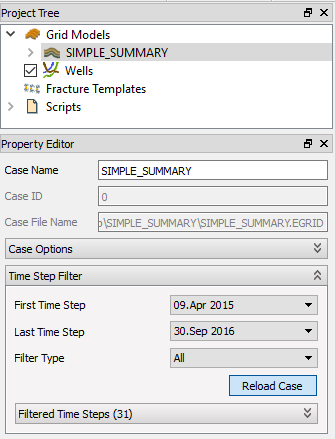
After clicking Reload Case, the time steps in the toolbar will be updated.
Appending additional properties to a binary case
If a binary or text reservoir simulation case is loaded, additional properties can be appended to this binary case. Make sure that the number of values in the GRDECL file matches the total number of cells in the binary case.
Appending Additional Properties
For export of currently selected cell result values to text file, see Export: Eclipse Properties
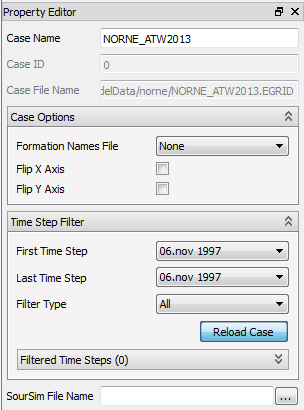
Handling Missing or Wrong MAPAXES
The X and Y grid data can be negated in order to make the Grid model appear correctly in ResInsight. This functionality is accessible in the Property Editor for all Eclipse Case types as the toggle buttons Flip X Axis and Flip Y Axis as shown in the example below.