Grid Property Calculator
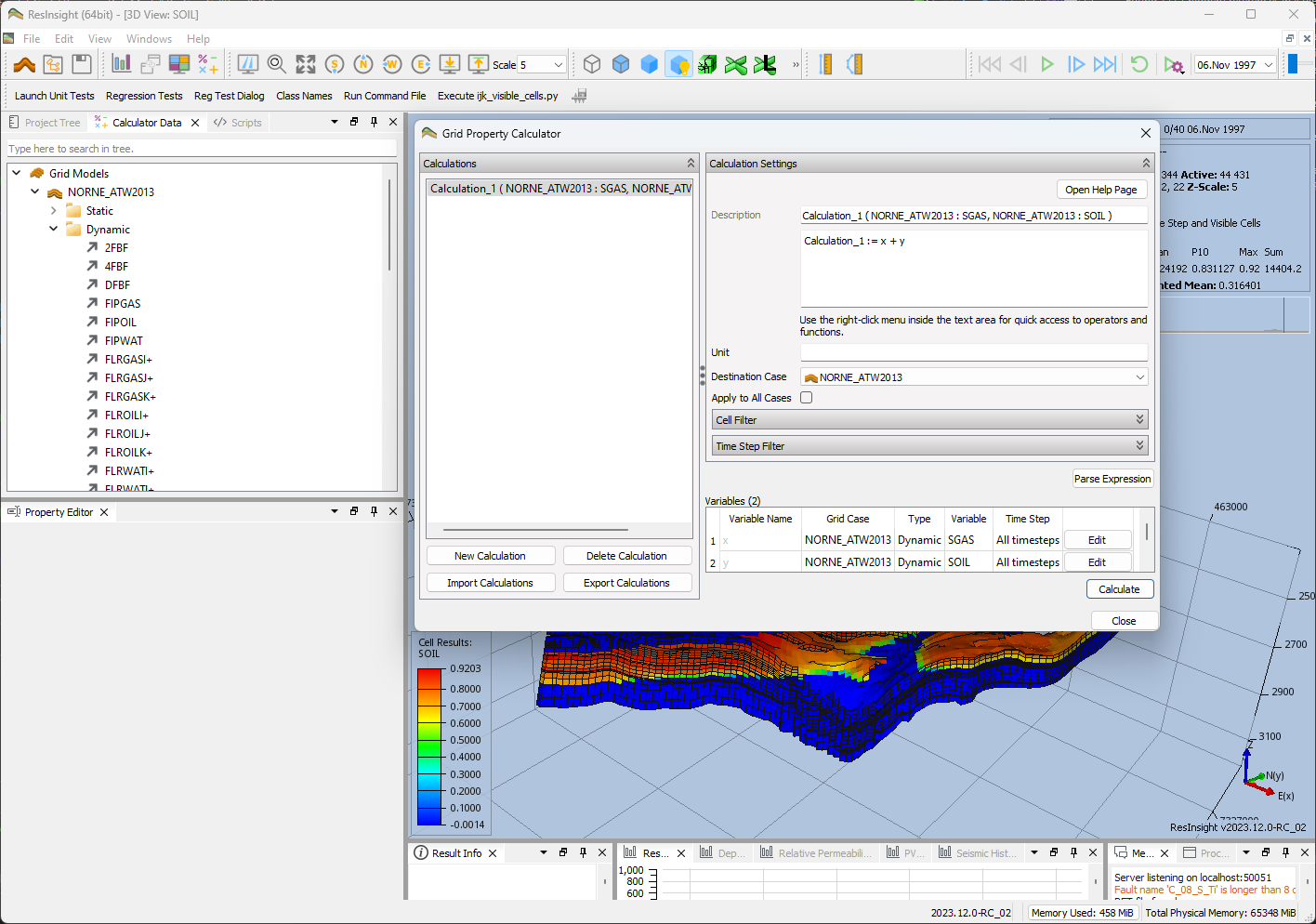
ResInsight offers a built-in property calculator for grid parameters. The Grid Property Calculator enables arithmetic expressions to be parsed and calculated for visualization purposes. The expression can be applied to one or multiple grid models, and the expression text can be stored to a file for later use.
Expressions can be saved to a text file using the Export Calculations button. The default location for calculations can be set in Preference->Import/Export.
More details on mathematical operations are described in Calculator Expressions
Invoking the Grid Property Calculator
Invoke the the Grid Property Calculator by pressing the calculator icon
 in the menu bar or by right-clicking
 Cell Result in Project Tree.
Example using Grid Property Calculator
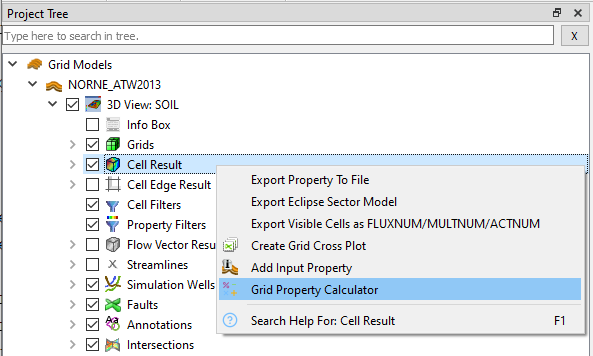
As shown, the Grid Property Calculator is invoked by right-clicking
Cell Result in Project Tree.
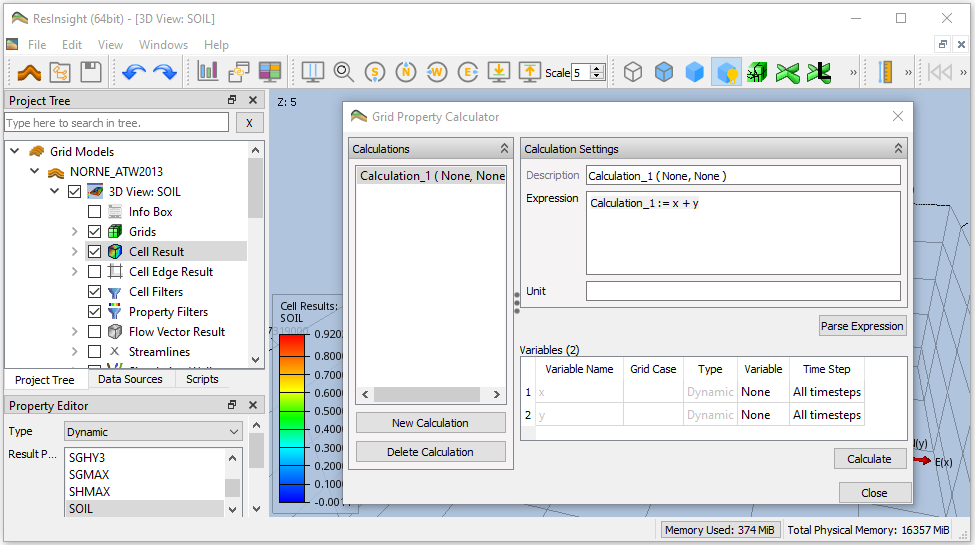
As seen below, the Grid Property Calculator is per default prefilled with the simple summation
Calculation_1 := x + y.
This simple summation suffices for exemplifying its use.
However, you may change name of the calculation and add additional variables and arithmetic operators in the Expression field.
Note
If statements are also supported with the following syntax NEW_TRANX := if((TRANX < 0.01), 0.01, TRANX)
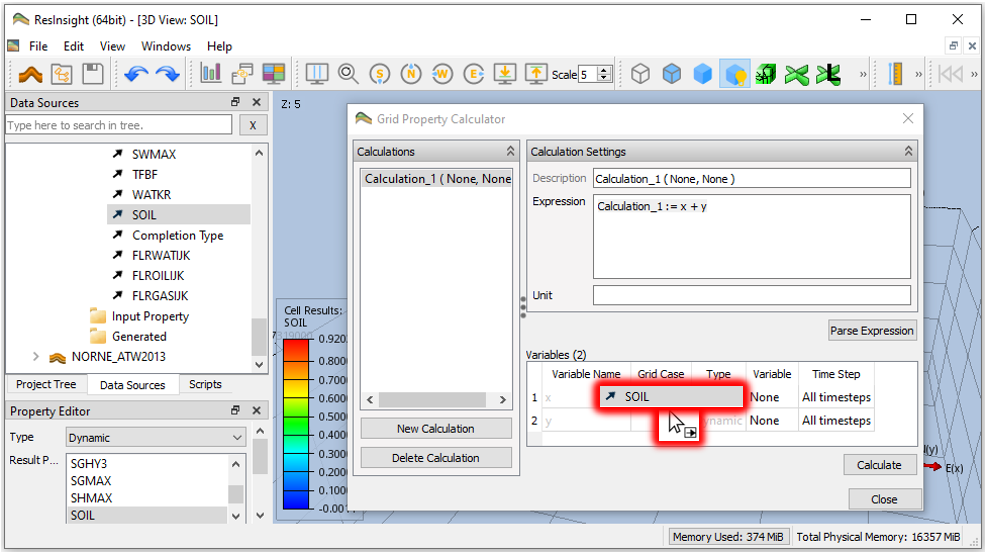
The next step is to define the variables x and y. An easy way to define each variable is to drag and drop properties from Data Sources. See screenshot below for drag and drop of SOIL from Data Sources to the row of variable x in Grid Property Calculator (emphasized in red). Continue with drag and drop of SGAS to define y.
Finally, press Calculate to perform the actual calculation.
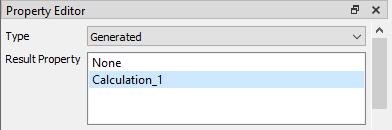
The calculated result is accessible via Property Editor as Type Generated Result Property.
Reference Procedure using Grid Property Calculator
- Invoke the the Grid Property Calculator by right-clicking
Cell Result in Project Tree.
- Define the expression for calculation by the involved variables and arithmetic operators
- Type the name of calculation, required variables and arithmetic operators into Expression
- Press button Parse Expression to verify the expression and referrals to actual variables
- Define each actual variable referred by the expression, either manually or by drag and drop from Data Sources
- Press Calculate to perform the actual calculation
- Access the calculated result in Property Editor as Type Generated Result Property
Cell Filter
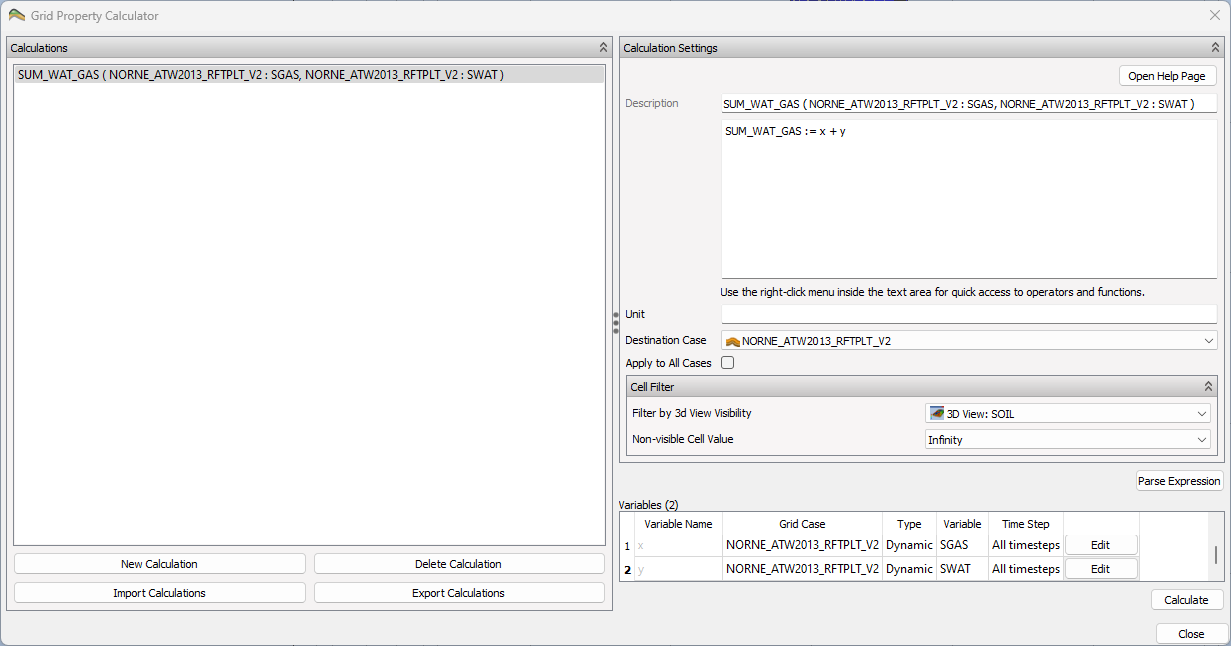
Use the Cell Filter group to calculate the expression only for a subset of the grid cells. Filter Type has the following options:
- None – all cells are calculated.
- Cell Filter View – only cells visible in the selected view are calculated. The visible cells of the view are reused for all cases, so all cases must have the same grid size.
- Data Filter – only cells accepted by the selected data filter are calculated.
When a filter is selected, Non-visible Cell Value controls the value assigned to cells outside the filter:
- Infinity – cells are assigned an undefined value.
- Property Value – cells are assigned the value of the selected property. Click Edit to select the property.
- User Defined Custom Value – cells are assigned the value given in Custom Value.
Data Filter
A data filter selects cells independent of the cells visible in any view. The Data Filter list contains the data filters defined on the destination case, and the data filters of the grid ensemble the destination case belongs to. Ensemble filters are listed as Ensemble name : Filter name.
The filter is evaluated for each calculated case and time step, using the active cells and result values of that case. A property filter or a formation filter can therefore select different cells in each case, and a filter on a dynamic property can select different cells for each time step.
Data filters are created by right-clicking a grid model or a grid ensemble in the Project Tree and selecting a filter from the Data Filters sub menu, see Create Data Filters.
Storage of Expressions to File
Use Import Calculations and Export Calculations to store and load expressions to and from a file.